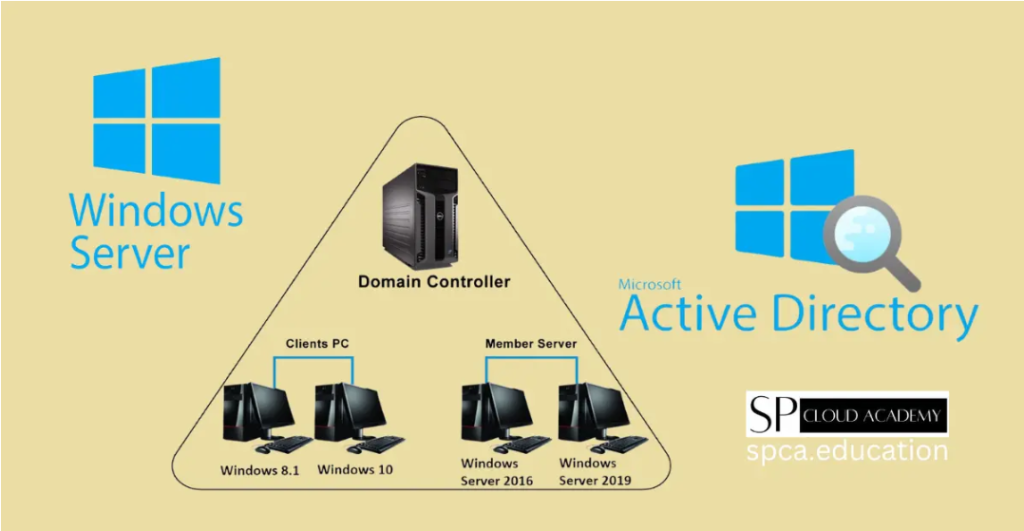
As a Computer Systems Technician student at St. Lawrence College, I have had the opportunity to work extensively with Windows Server. Throughout my studies, I’ve learned how critical security is in maintaining a well-functioning IT infrastructure. In today’s rapidly evolving cyber threat landscape, ensuring Windows Server security is crucial for businesses. This blog post will cover key security best practices for Windows Server that I have learned and applied.
Additionally, I have studied networking concepts at different levels, including Networking Level 1, 2, and 3. While I haven’t had hands-on experience configuring large-scale networks, I have gained a solid understanding of how networking plays a crucial role in securing IT environments. Learning about network security principles has helped me grasp how servers interact within a network and the importance of protecting these connections from potential threats.
1. Implementing the Principle of Least Privilege (PoLP)
One of the fundamental security measures I have learned in Windows Server administration is applying the Principle of Least Privilege (PoLP). This means granting users and applications only the permissions necessary to perform their tasks. Over-privileged accounts can become major security risks if compromised. To implement PoLP:
- I use role-based access control (RBAC) to manage user permissions effectively.
- I avoid using accounts with administrative privileges for daily tasks.
- I regularly review and audit account permissions.
2. Enabling Windows Defender and Configuring Firewall Rules
Windows Server comes with built-in security tools such as Windows Defender and Windows Firewall. Properly configuring these can help prevent malware infections and unauthorized network access.
- I keep Windows Defender updated to detect the latest threats.
- I set up and enforce firewall rules to block unnecessary ports and restrict inbound/outbound traffic.
- I enable Advanced Threat Protection (ATP) for real-time threat analysis.
3. Keeping Windows Server Updated with Patch Management
Cybercriminals often exploit vulnerabilities in outdated systems. Therefore, maintaining a consistent patch management strategy is essential.
- I enable automatic updates via Windows Server Update Services (WSUS) or Microsoft Endpoint Configuration Manager.
- I schedule updates to avoid downtime while ensuring critical security patches are applied promptly.
- I test patches in a staging environment before deploying them to production servers.
4. Implementing Multi-Factor Authentication (MFA) for Remote Access
Remote access is often a target for cyberattacks. Adding Multi-Factor Authentication (MFA) enhances security by requiring additional verification steps beyond a password.
- I configure MFA for Remote Desktop Protocol (RDP) and VPN access.
- I integrate Windows Server with Azure Active Directory for cloud-based authentication.
- I use smart cards or biometric authentication for an additional security layer.
5. Configuring Group Policy for Security Hardening
Group Policy is a powerful tool for enforcing security configurations across multiple servers and workstations. Some essential security policies I have implemented include:
- Disabling legacy protocols such as SMBv1 to mitigate ransomware attacks.
- Enforcing password complexity requirements to prevent weak passwords.
- Restricting interactive logins to authorized administrators only.
6. Regularly Auditing Logs with Windows Event Viewer
Monitoring and auditing are key to detecting and responding to potential security threats. Windows Event Viewer allows system administrators to track and analyze server activity.
- I enable auditing for user logins, failed login attempts, and privilege escalations.
- I set up alerts for suspicious activities, such as repeated failed login attempts.
- I use Security Information and Event Management (SIEM) tools for advanced log analysis and automated threat detection.
7. Performing Regular Backups and Disaster Recovery Planning
No security plan is complete without a robust backup and disaster recovery strategy.
- I use Windows Server Backup or third-party backup solutions to create full system backups.
- I store backups in a secure, offsite location to protect against ransomware and hardware failures.
- I regularly test backup restorations to ensure data integrity and availability.
Conclusion Securing a Windows Server environment requires continuous effort and vigilance. By implementing the best practices outlined above, I have been able to strengthen server security and reduce risks in my projects. My experience at St. Lawrence College has reinforced the importance of proactive security measures, and I look forward to applying these skills in a professional IT environment.
Leave a Reply